A major redesign of the login page. Four color schemes are available: Default, Light, Gray, and Classic. Tab key navigation has been improved. A resend timer has been added to the two-factor authentication button.
A new minimalist loading animation is now shown when entering the system and while waiting for tabs to open.
The work list of units and unit groups has been redesigned. Element styles are updated, padding is fine-tuned, and group name display is improved.

Refined design of the work list on the Monitoring tab
Space usage in the dialog window has been optimized. Display of unit link names and descriptions has been improved for better readability.
The color indicator on notification rows is now larger and more visible. The row background matches the indicator color and is more transparent. Unread notifications are now marked with a blue dot instead of a background color.
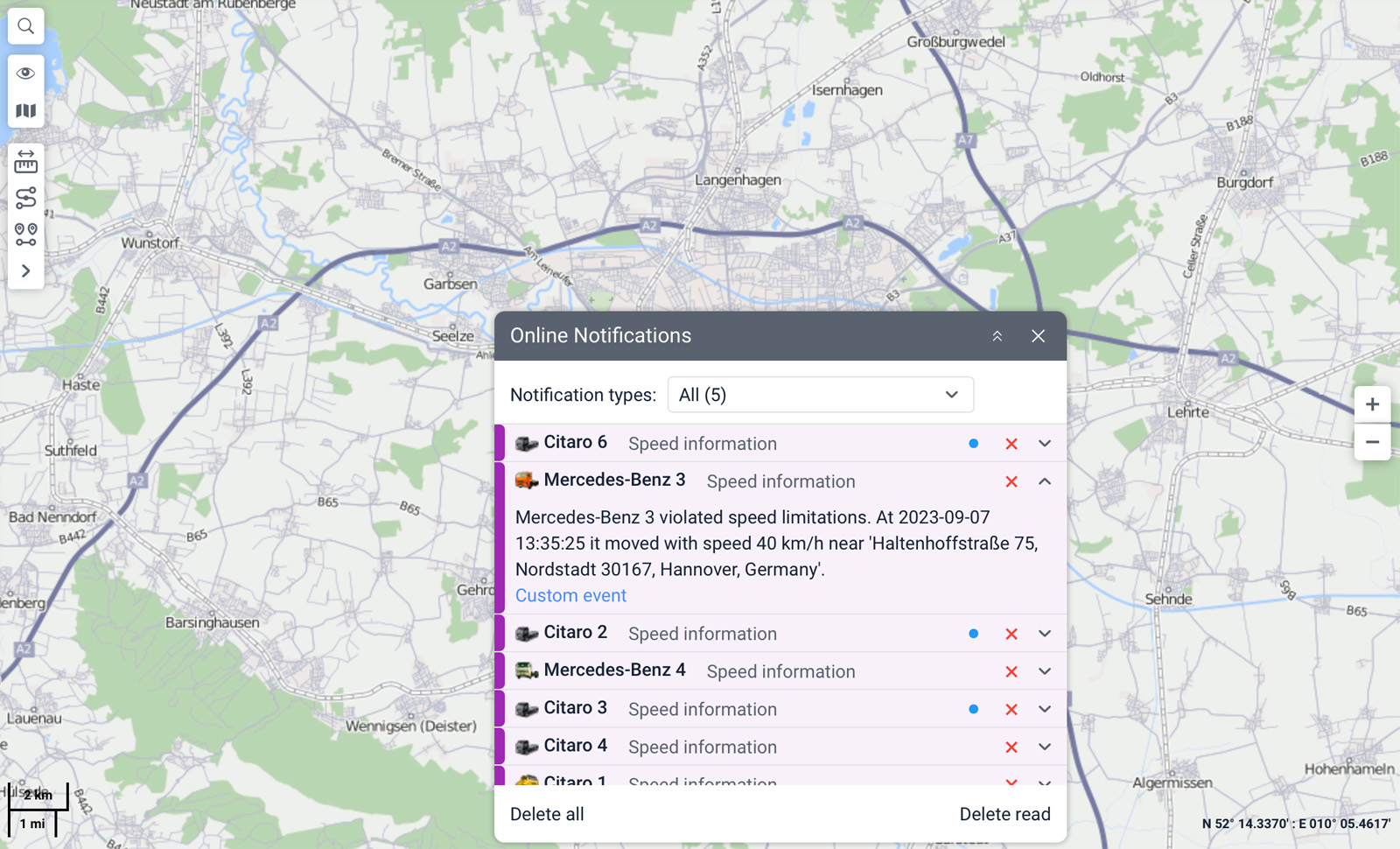
New color indication for online notifications
A more modern look. Key file information (unit, date and time, location) and the button panel are now grouped together in one place.
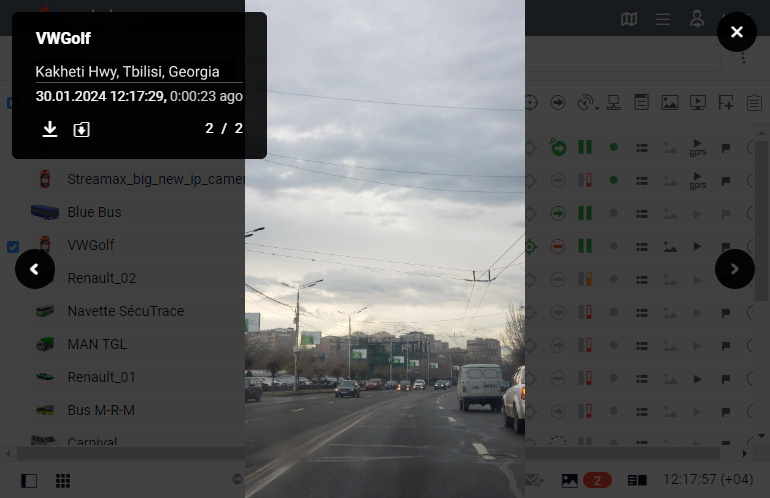
Improved interface for viewing media files
Available throughout the system: Monitoring, Jobs, Notifications, Video, mini-windows, Messages, Reports, Tracks, Online notifications, Chat with drivers. Vehicle data displayed in a clear, structured format.
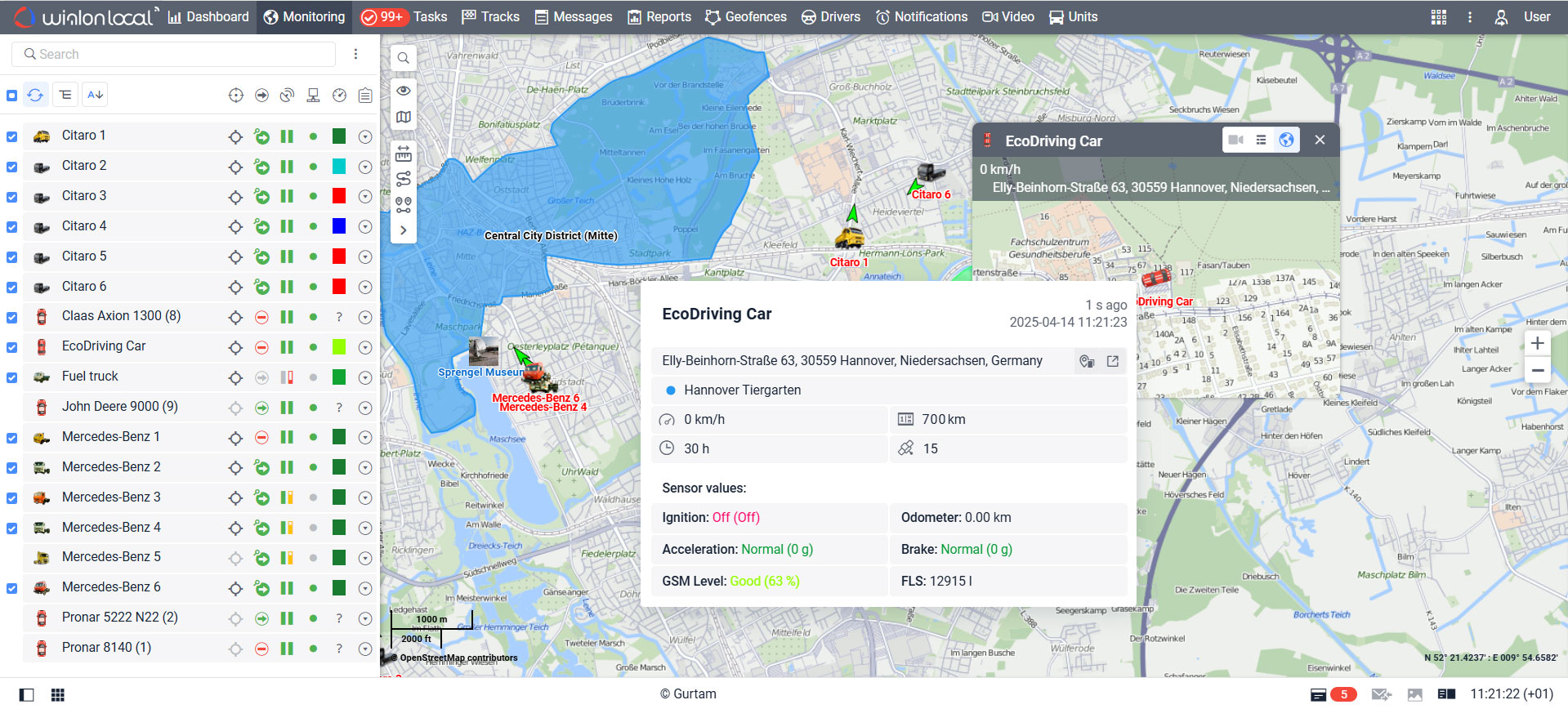
The updated unit tooltip on the map
Visually aligned with the style of the Monitoring tab. The geofence creation and editing form has been improved. All functionality remains unchanged.
New units are automatically added to the work list without any extra steps. For users with fewer than 20 units, the feature is enabled by default.
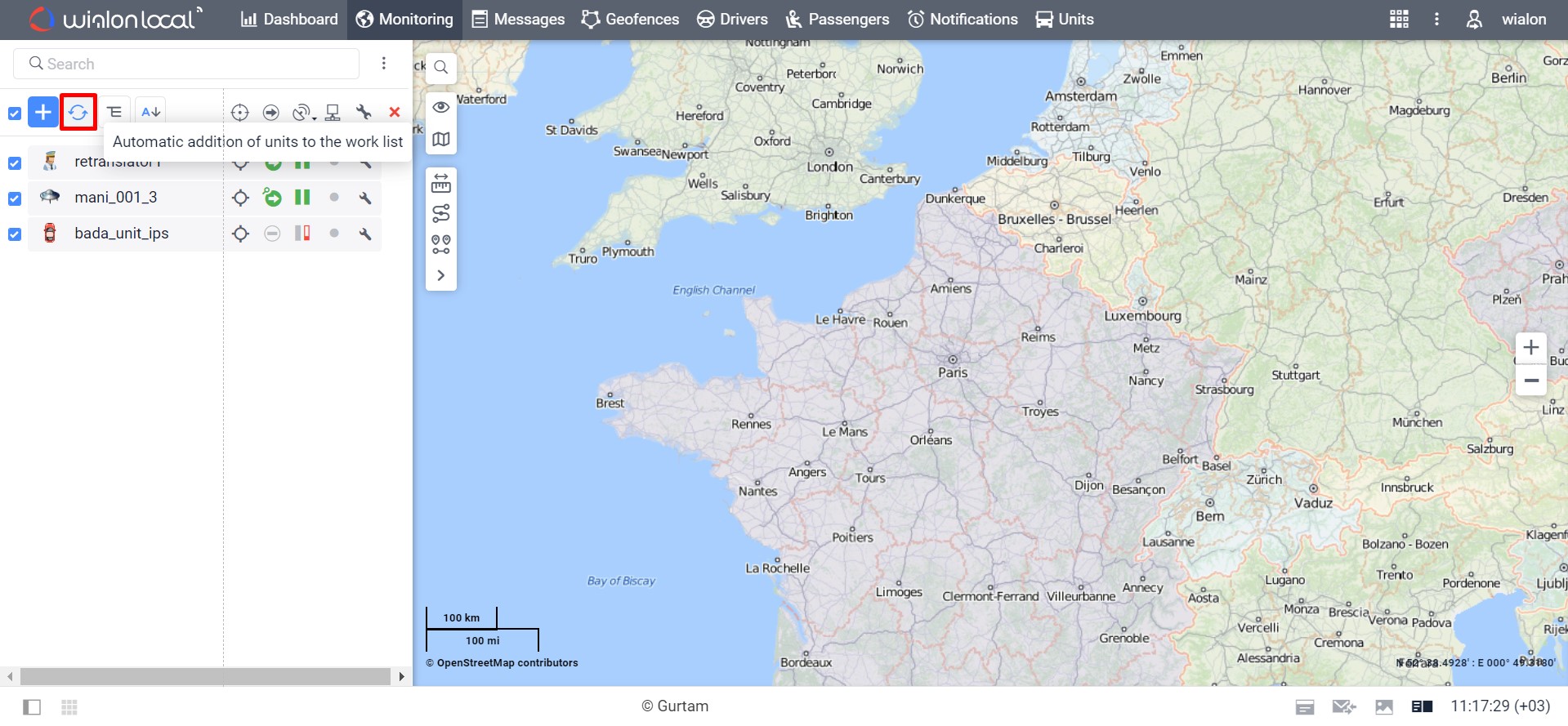
Now units will appear in the work list automatically
Any situation requiring attention can be registered as a task — manually or automatically when a notification is triggered. Task card includes: vehicle and driver, description, priority, status, and assignment.
- A badge counter shows the number of new tasks assigned to the user
- Task markers on the map for quick incident location
- Filters by time, priority, status, and assignee
- Two permission levels: full editing or status and comments only
- Full comment history with author and timestamp
- Bulk update of statuses, priorities, and assignees
- A dedicated Tasks table in reports
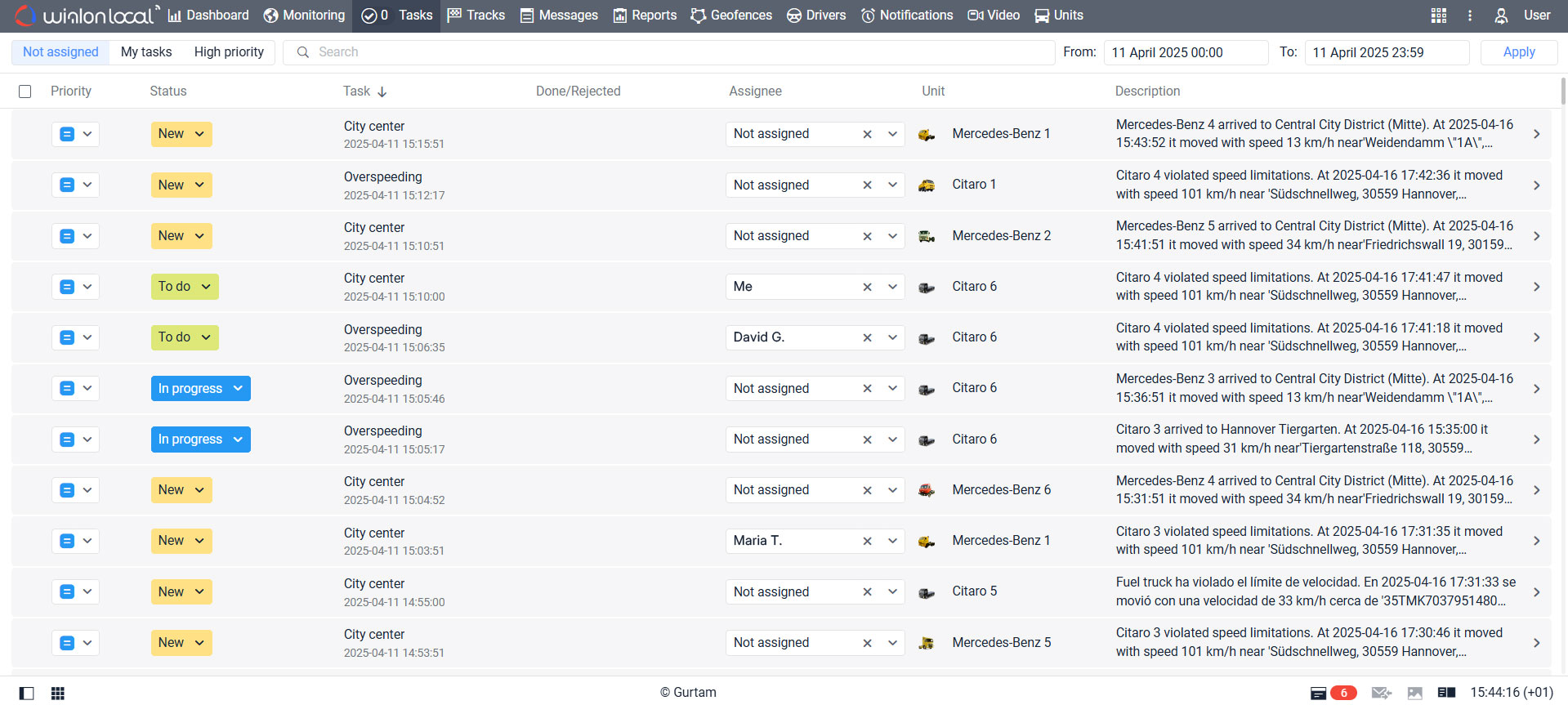
The Tasks functionality simplifies task management in Wialon
In user settings, you can configure how values are displayed for Mileage, Gauges, Engine, Fuel, and custom sensors — show decimal fractions or round to whole numbers. Applies in messages, reports, tooltips, and other sections.
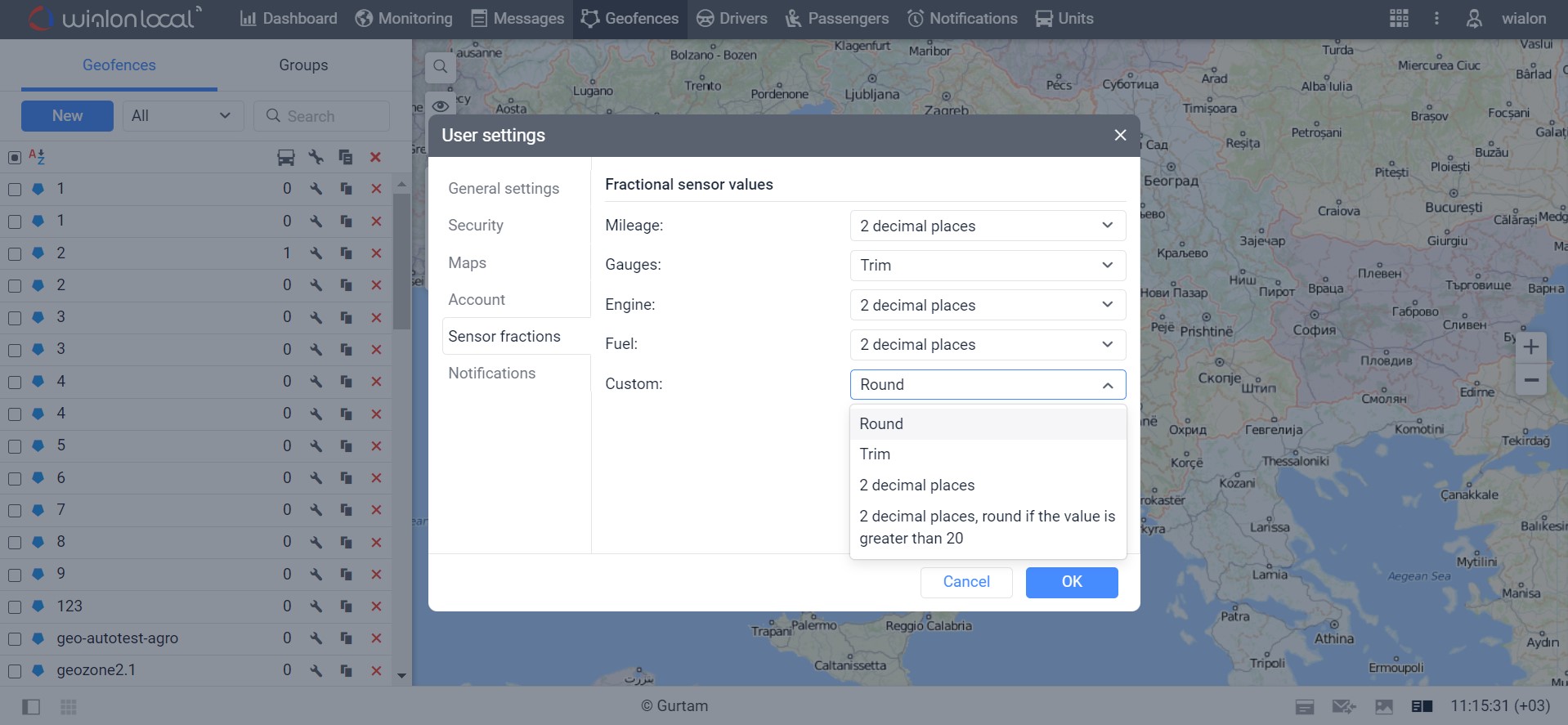
Setting the fractional sensor values
Users can independently select conversions for calculating sensor values without contacting Wialon specialists. Useful for drivers operating multiple vehicles with different tracker models.
A new filtering type for fuel level sensors. The algorithm automatically selects the appropriate degree of filtering based on your tracker data — providing more accurate fuel information.
Users can select the parameter used to determine speed: GPS or CAN bus. Useful when GPS speed is unreliable (warehouses, parking lots, mountain areas) or when CAN bus data is preferred. Not available for all device types.
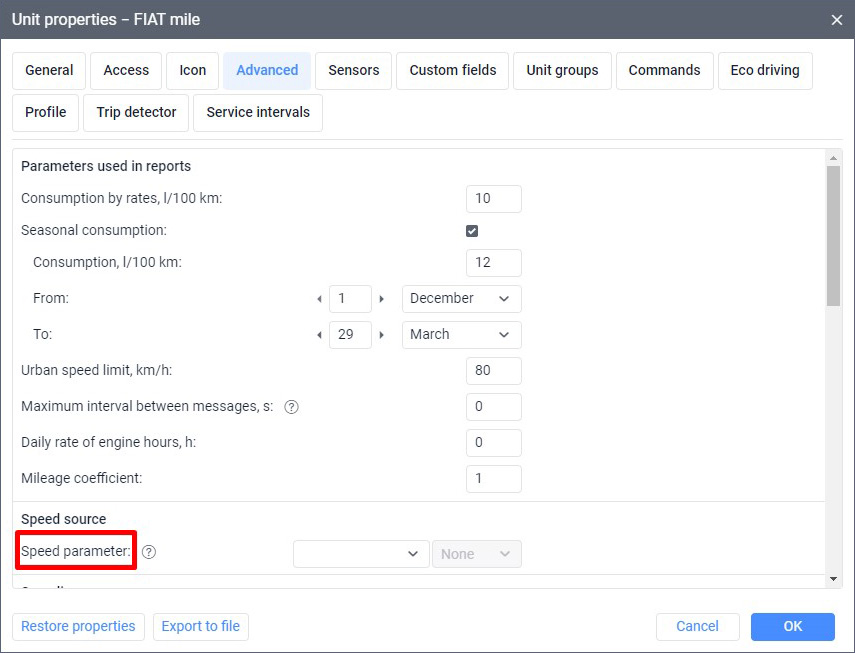
You can select the required speed parameter in the Unit properties
When creating a new unit, the system automatically suggests the most commonly used sensors for the selected device type — mileage, ignition, and voltage — with predefined parameters. After the first message, the list is refined automatically. Suggestions are also available for existing units.
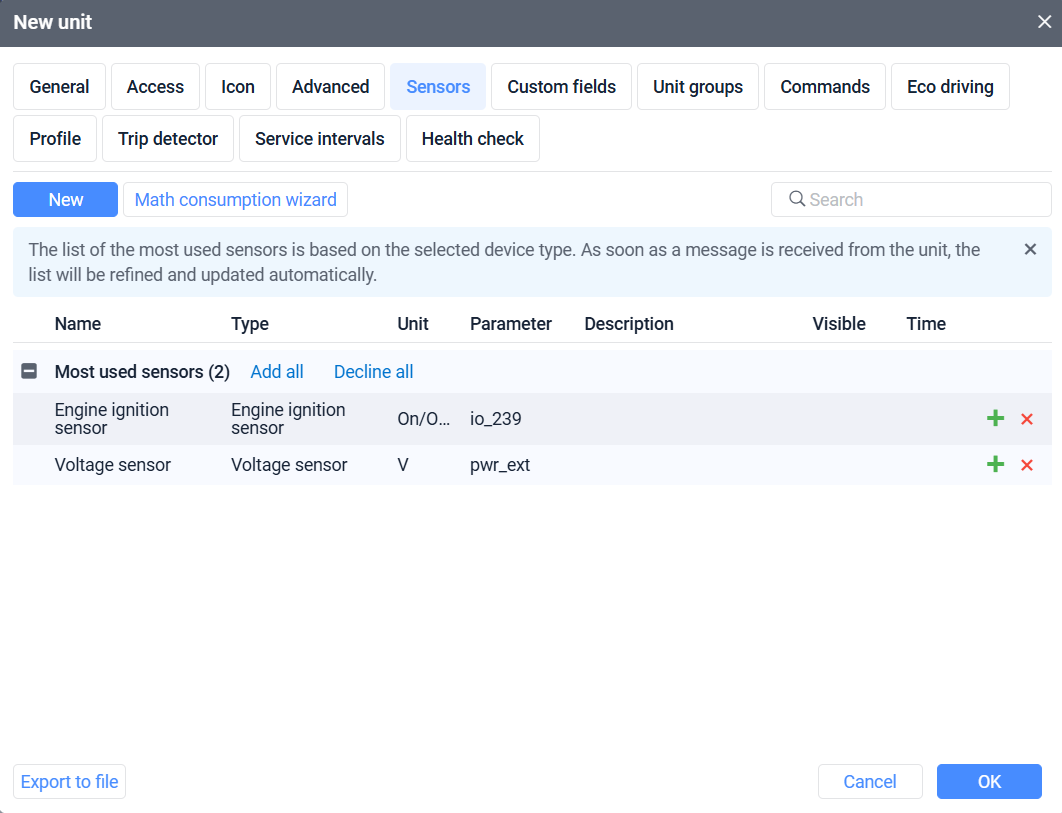
An example of a list of sensors recommended by Wialon
Wialon continuously monitors device parameters: battery level, voltage, message frequency, and GPS signal quality. Users select which criteria to monitor and set custom thresholds. Each unit is assigned a status: Healthy, Need attention, or Unhealthy — displayed in the Dashboard. All incidents are logged in a dedicated table in reports. Notifications can be configured for status changes or every new incident.
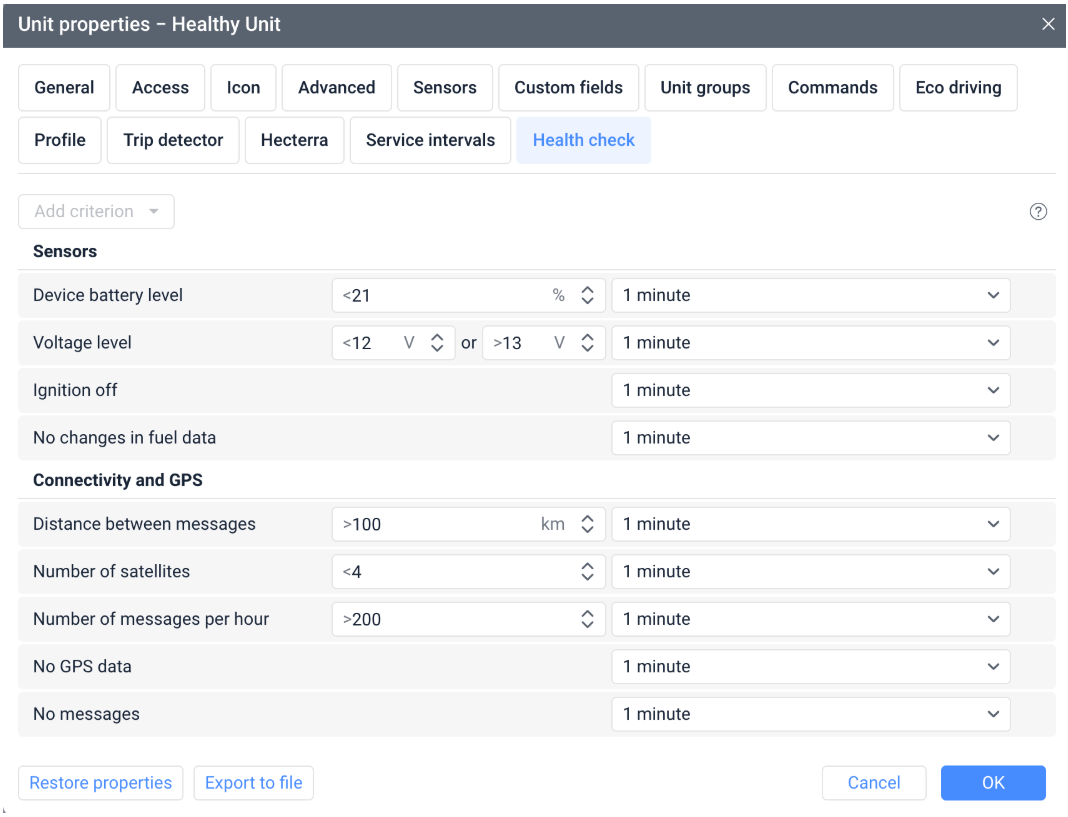
Users can adjust key monitoring parameters for certain Health check criteria
A new battery level sensor in kWh works just like a fuel sensor: charging sessions and energy consumption in reports, dynamics on charts, notifications about charging, and battery level on the Monitoring tab and in tooltips.
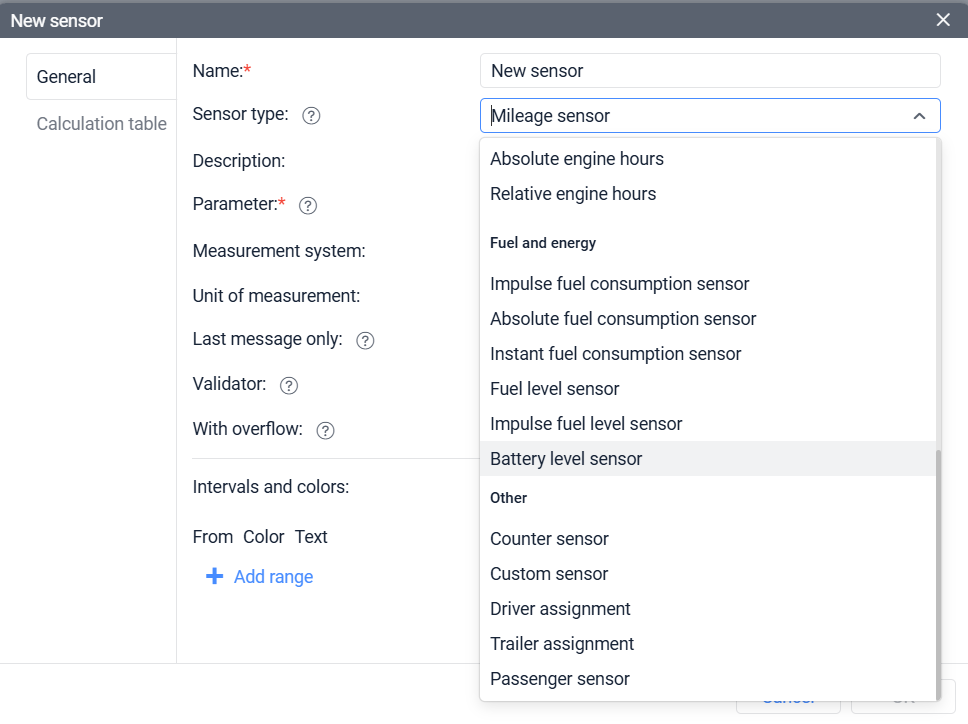
Users can find the battery level sensor in the Fuel and energy group of sensors
Fuel fillings and drains can be marked as false events — for example, when the sensor detected a change due to the vehicle being on a slope. False events are shown with a special icon on maps, charts, and tracks and are excluded from fuel metrics.
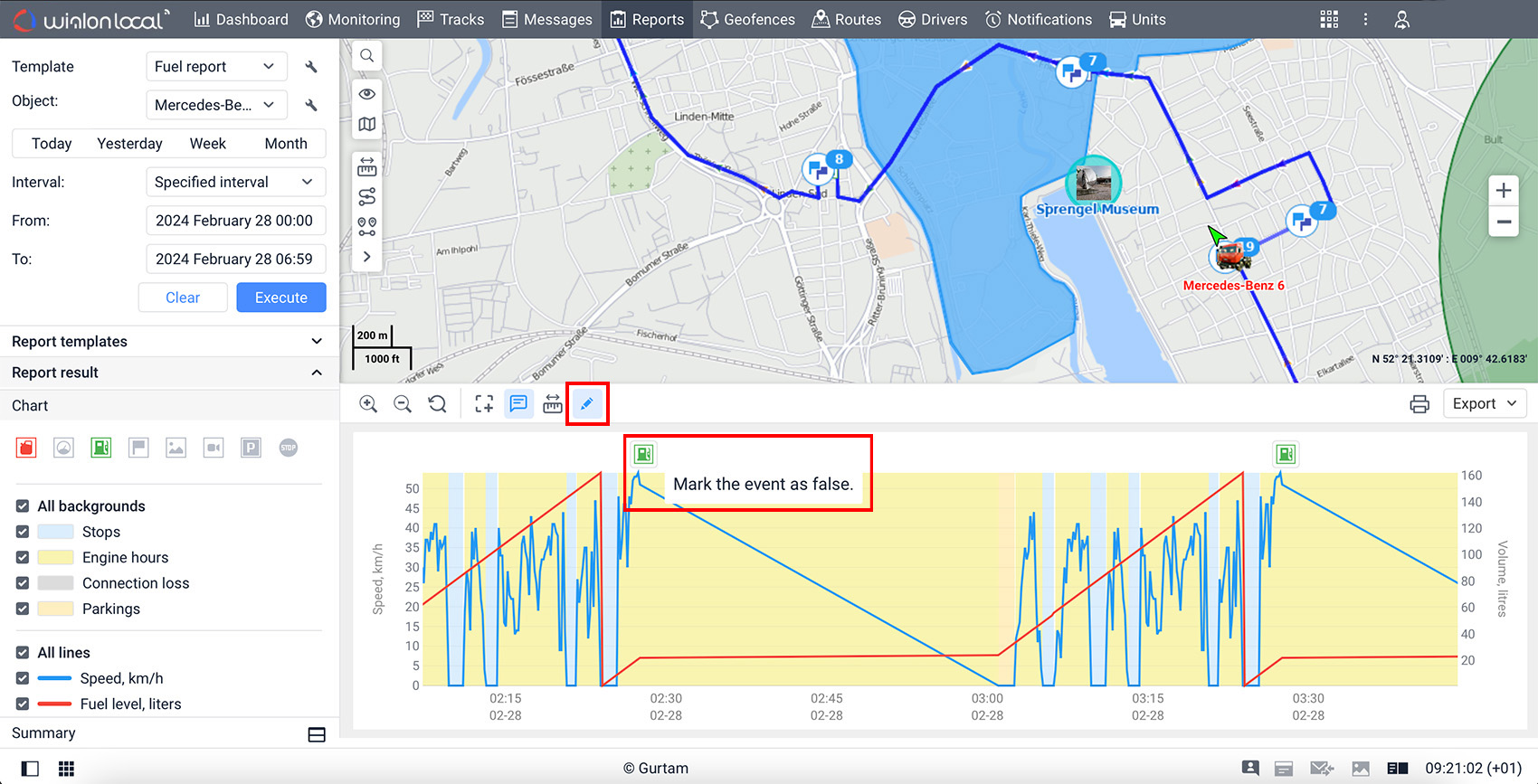
Marking of false fueling in the fuel report
The option to exclude drains from fuel consumption has been moved from report settings to the fuel level sensor properties. The setting now applies consistently in both the web interface and the mobile app — no more discrepancies.
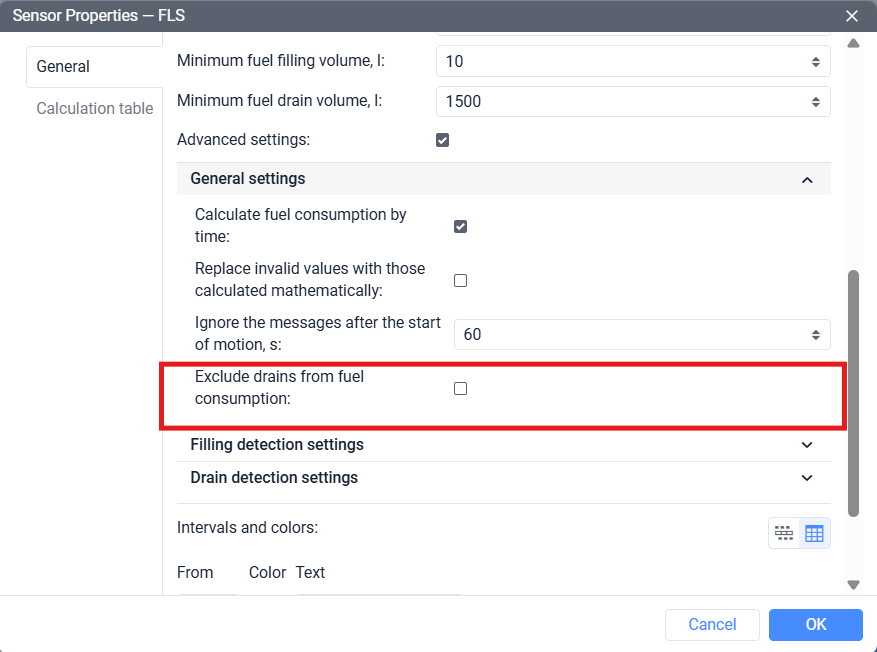
"Exclude drains from fuel consumption" option is now in the advanced settings of fuel level sensors
Replaces the 6-point system. The underlying mathematical formula for converting penalty points into scores remains unchanged.
The table now evaluates violations across the entire report period, including time when the vehicle is stationary. All existing tables will be automatically converted to the new format.
- Grouping by engine hours — especially relevant for special vehicles and machinery
- Averaging moved to table settings, now also available based on engine hours
- New Idling criterion — detects when the engine runs while the vehicle is stationary
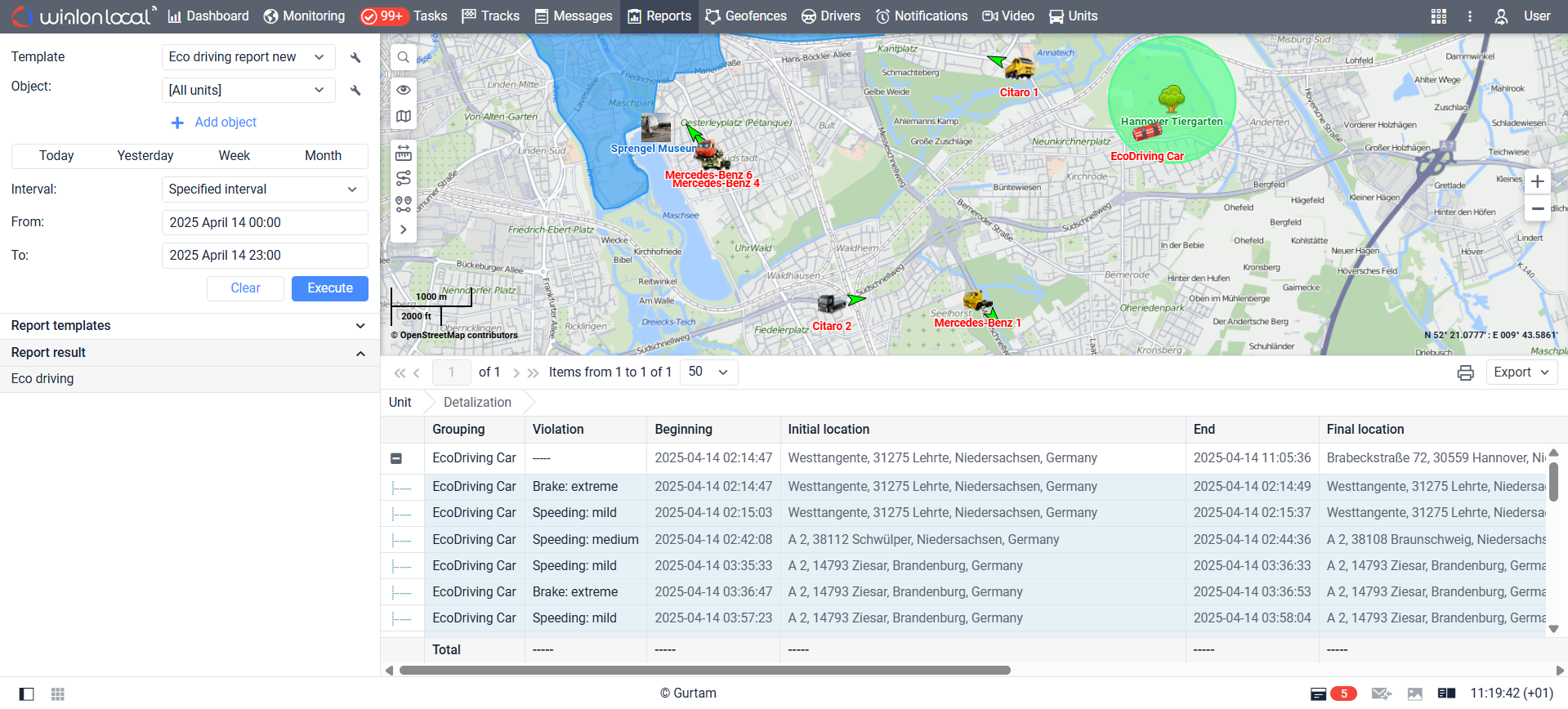
The updated Eco Driving table
The average CO2 emissions value is set in the unit properties. Emissions volume calculated based on trip mileage is available in reports for units, groups, drivers, and driver groups.
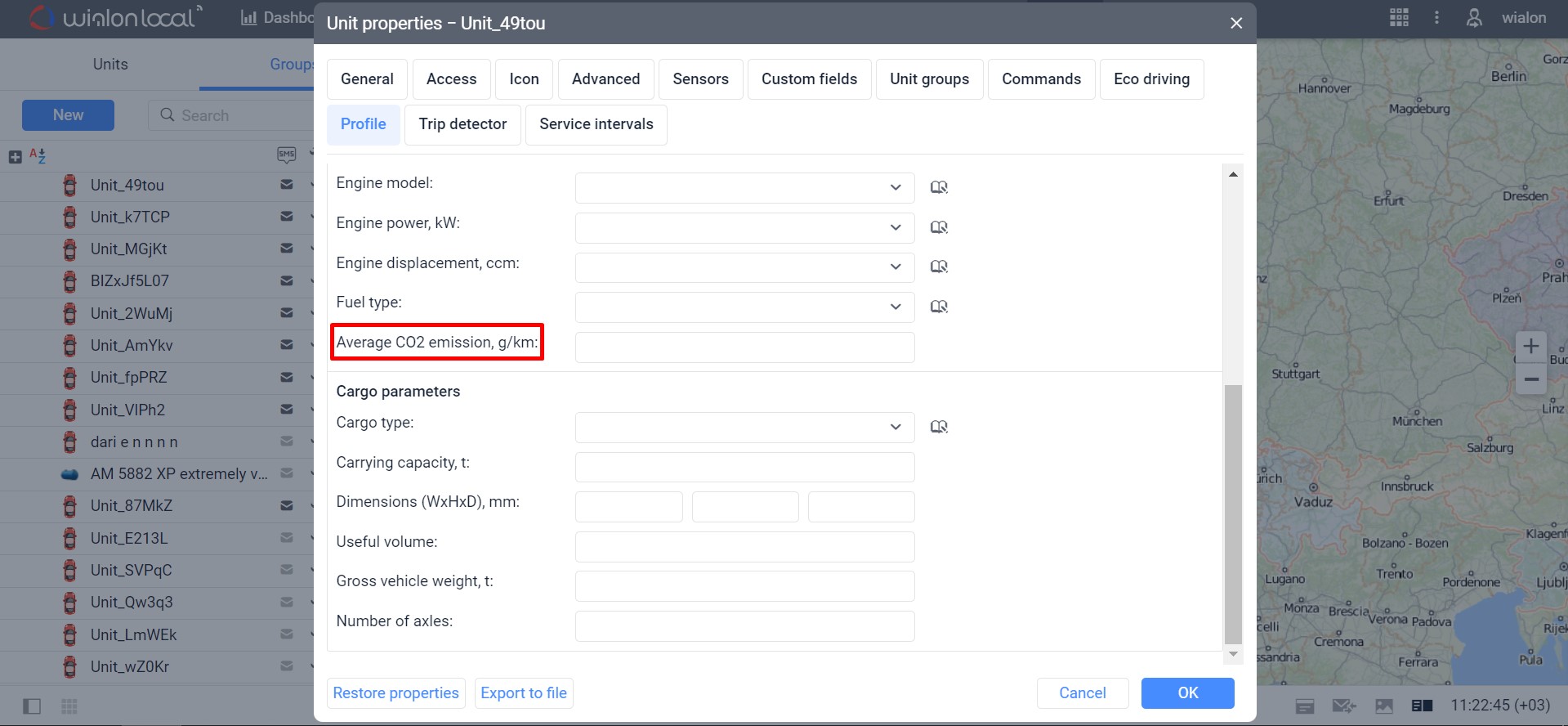
Average CO2 emissions value field in the Unit properties
- Duration display format — show engine hours in hours only instead of days:hours:minutes
- New filtering options, including by sensors
- Filters can now be inherited from other report tables
- Custom column support — cross-table calculations within the Statistics table
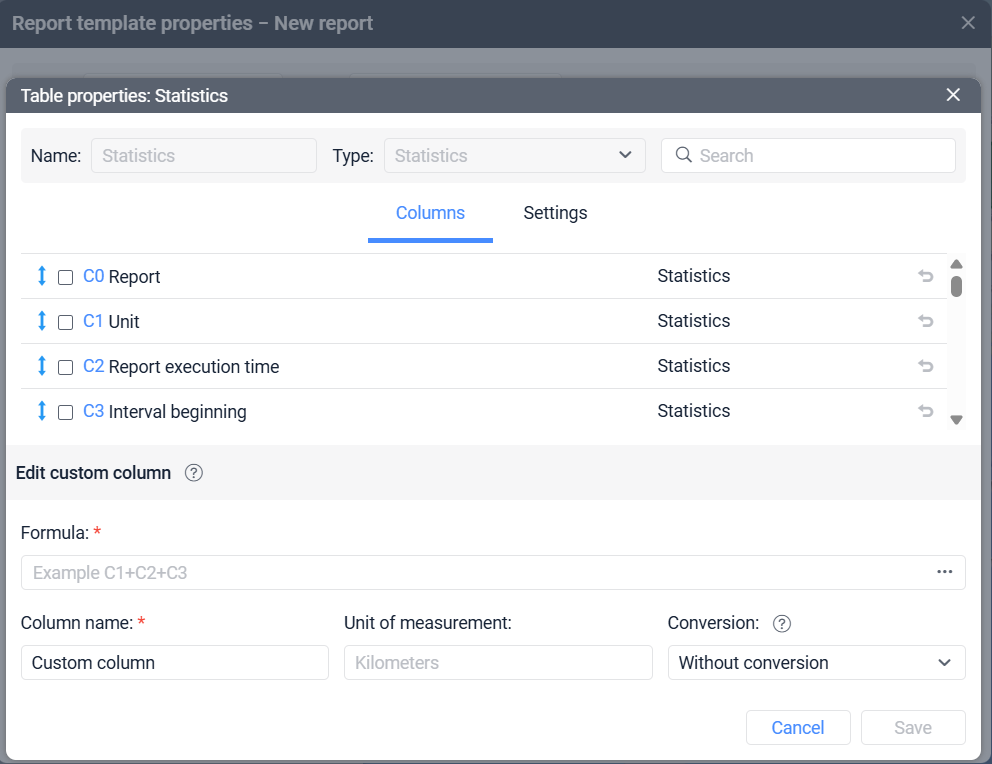
The Custom column feature in the Statistics table
Shows all triggered notifications for a unit or group: time, location, event type, assigned driver. Supports filtering by notification type, action, and resource. Summary data is also available in the Statistics table.
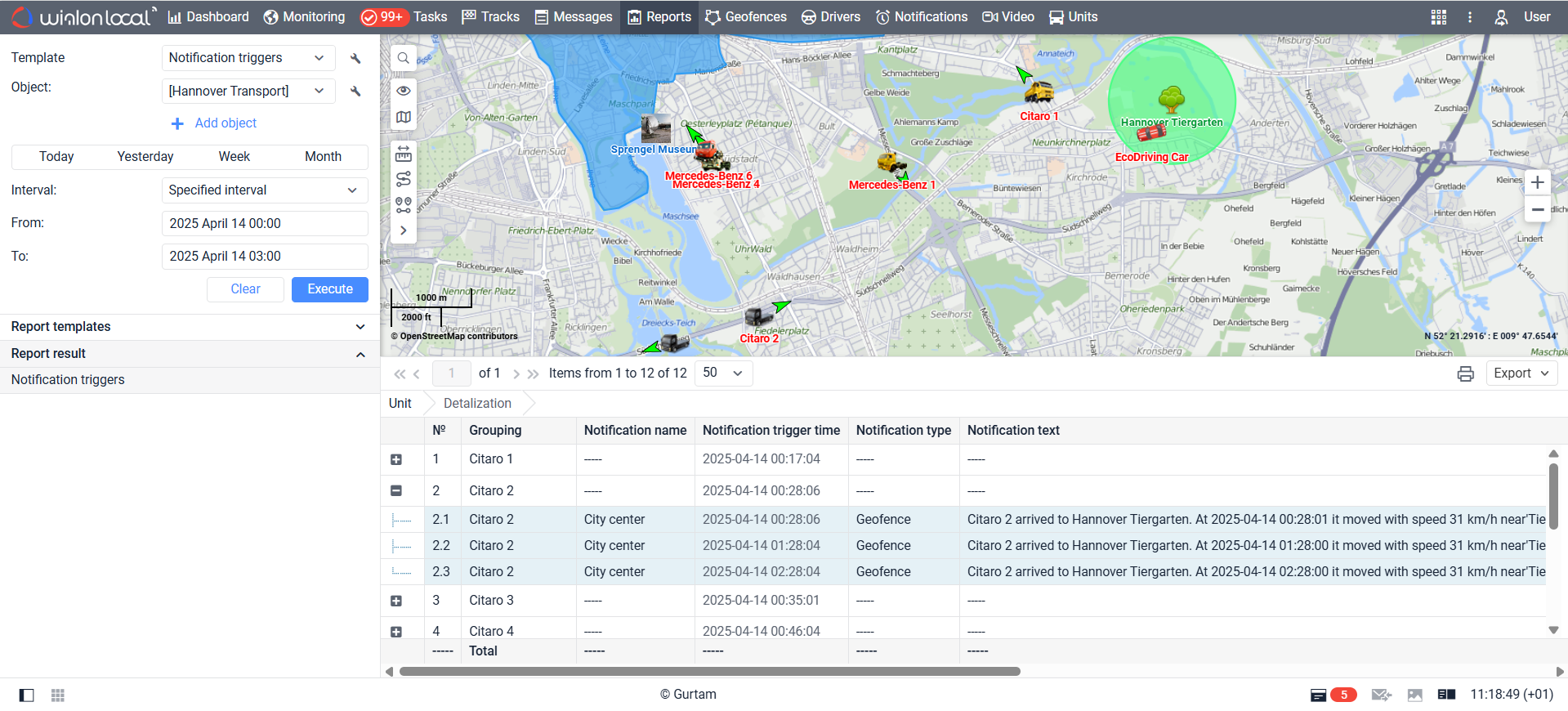
The Notification triggers table
The Notifications tab now supports combining multiple search criteria at once — type, period, unit. Makes it faster to find specific notifications even with large volumes.
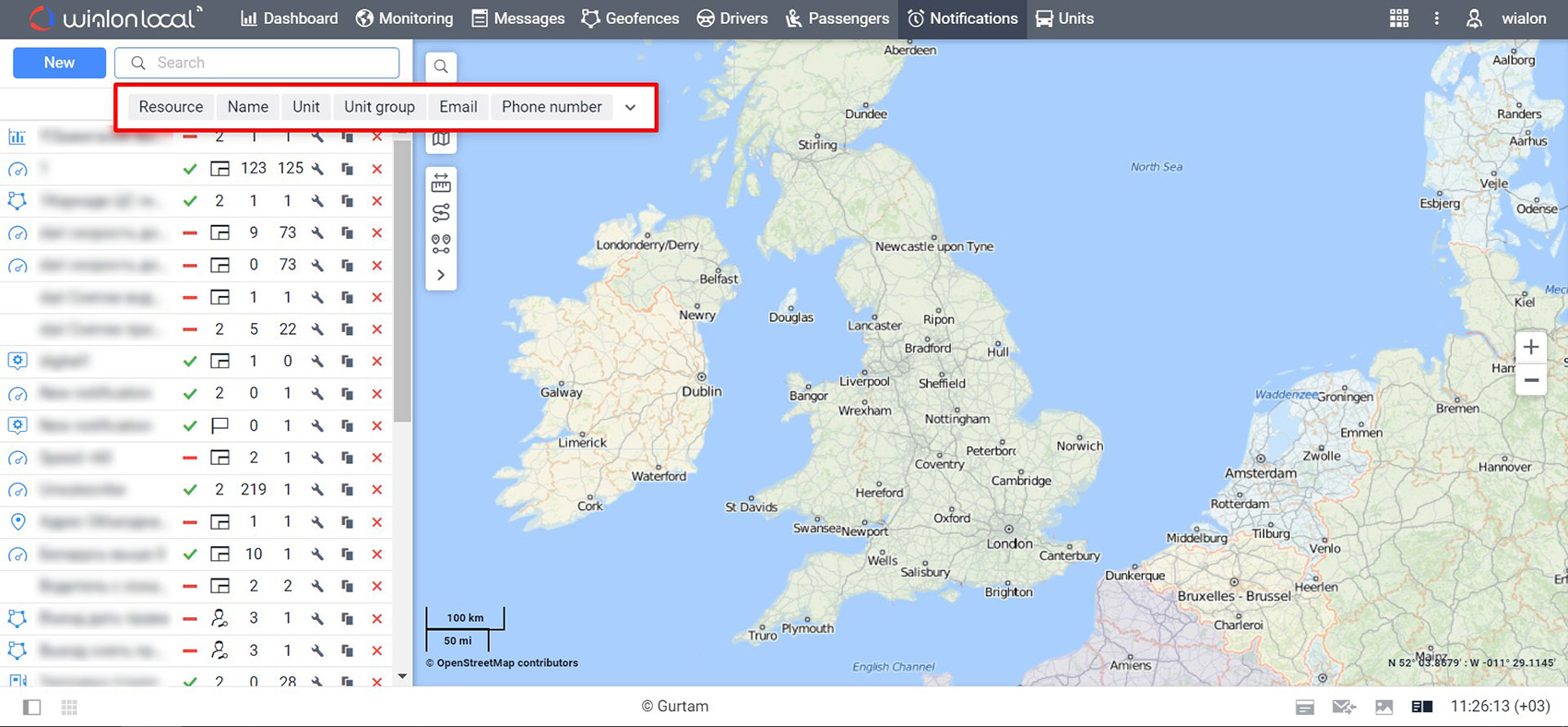
Criteria for filtering notifications
In unit properties, you can set thresholds for maximum average speed between messages and maximum distance between coordinates. When either threshold is exceeded, data is automatically excluded from mileage calculations. Filtering is enabled by default.
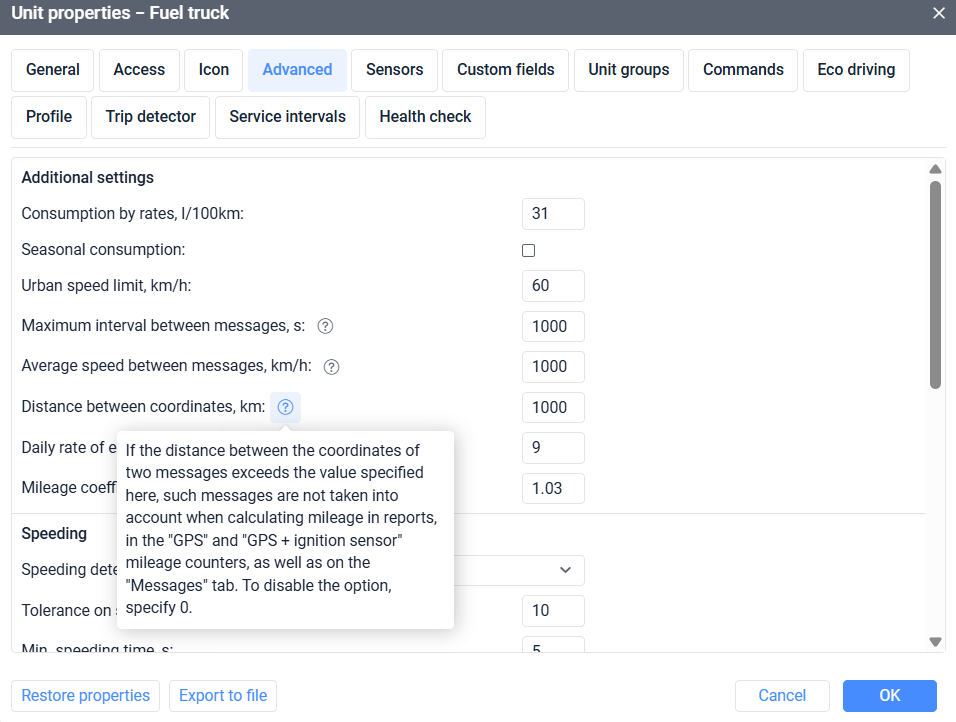
The filtration to exclude GPS outliers is enabled by default
- A truck restrictions layer has been added to HERE maps
- Speed limit detection, routing, and geocoding accuracy improved in Gurtam Maps
Consistent system behavior when incorrect data is entered across all Wialon forms: Driver, Passenger, Trailer, unit groups, unit properties, geofences, notifications, report templates, and custom fields.
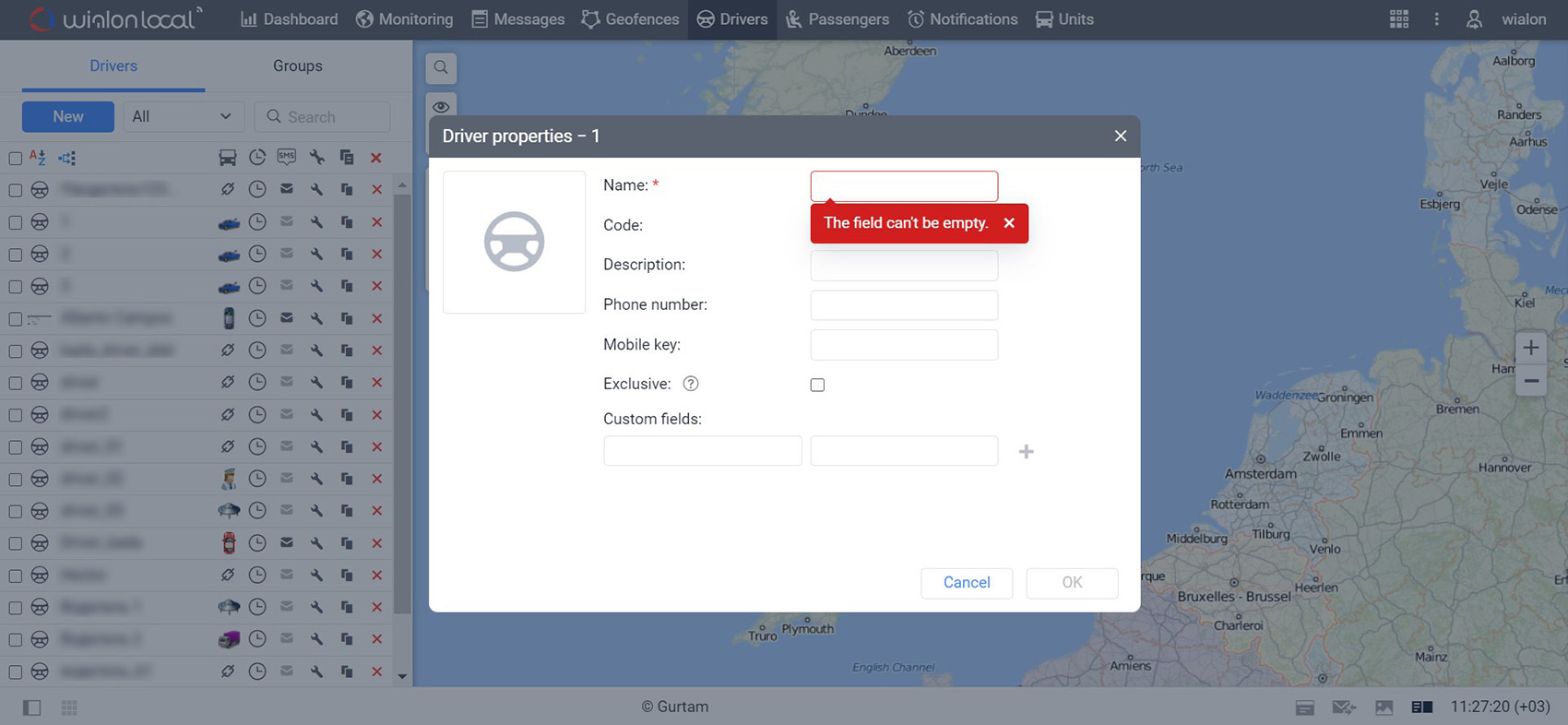
Example of validation when editing a driver's name
If your company uses Fleetio for fleet maintenance management, data from Wialon is sent there automatically: location, fuel level, mileage, and engine hours. No manual entry or file exports needed — everything syncs in the background.
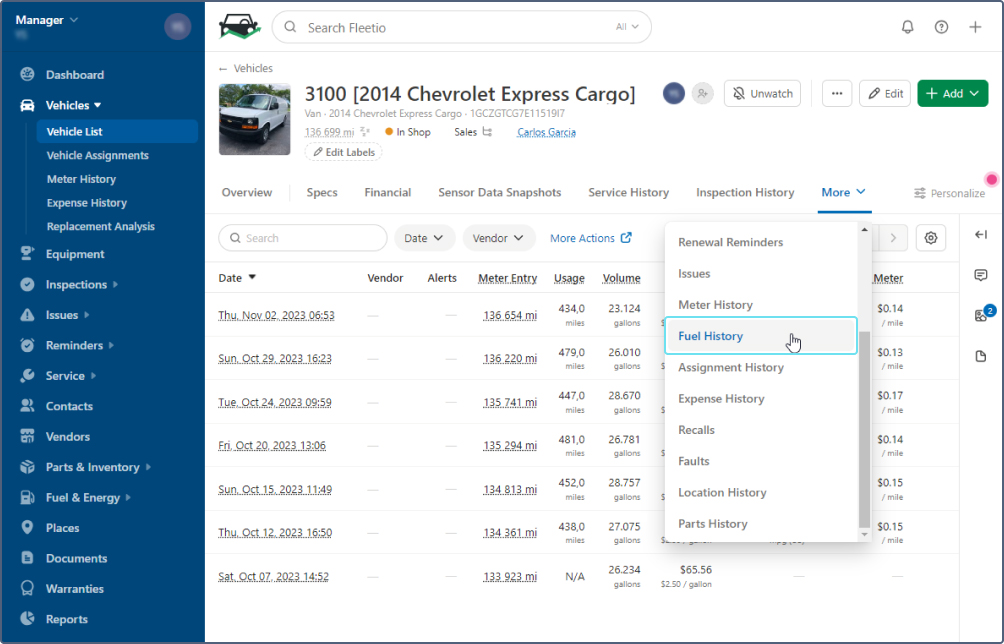
The full fuel history data is transmitted from Wialon to Fleetio
SMS notifications can now be sent via Twilio — a reliable platform operating worldwide. Nothing changes for the end user: SMS alerts simply become more stable.